
Auswirkungsbewertung
Footprint Score in den beiden repräsentativsten Kontexten.
1 Scans · letzter Scan vor 2 Monaten
Homepage-Score
Auswirkung auf der öffentlichen Startseite
v5.2.1 · 1 Scan · Konsolidierte Bewertung über 90 Tage · 1 Versionen
Was bei jedem Seitenaufruf hinzukommt
- Zusätzliche Zeit
- 0 ms
- Zusätzlicher Speicher
- 0.0 MB
- SQL-Abfragen
- +0
- CSS/JS-Dateien
- +3
- Externe Aufrufe
- 0
Admin-Score
Auswirkung im WordPress-Admin
Über
The official way to use Font Awesome Free or Pro icons on your WordPress site, brought to you by the Font Awesome team.
Our official plugin makes it easy to add Font Awesome icons to your pages, posts, and templates and includes the following features:
Install And Enable The Plugin
(See the Installation tab for details)
Mehr lesen Weniger anzeigen
How to Add and Style Icons
Full docs on how to use the plugin and add icons are available on the Font Awesome Docs site.
Add Icons in the Block Editor
Once you’ve set up your plugin, you can add icons as blocks or inline with text.
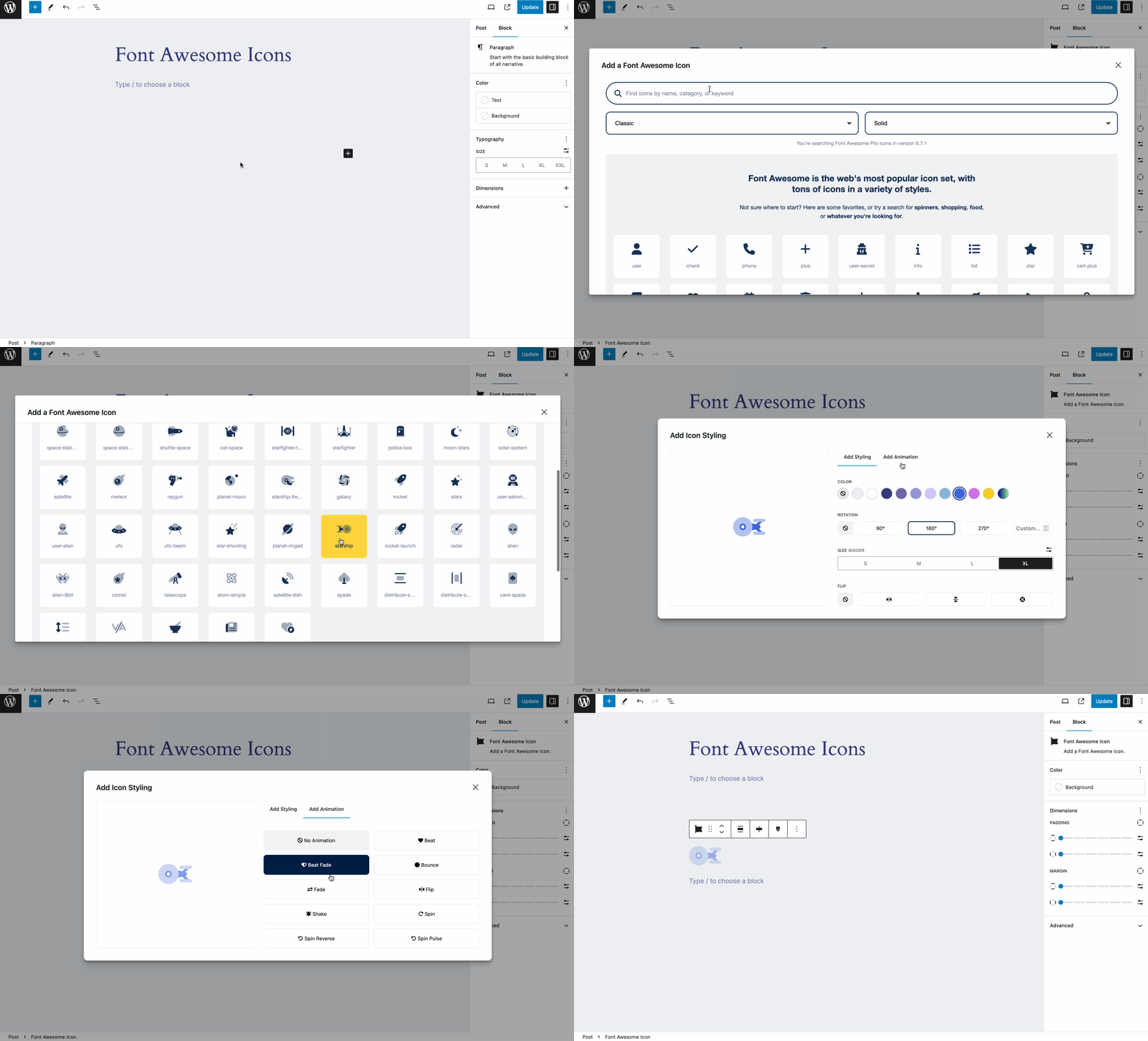
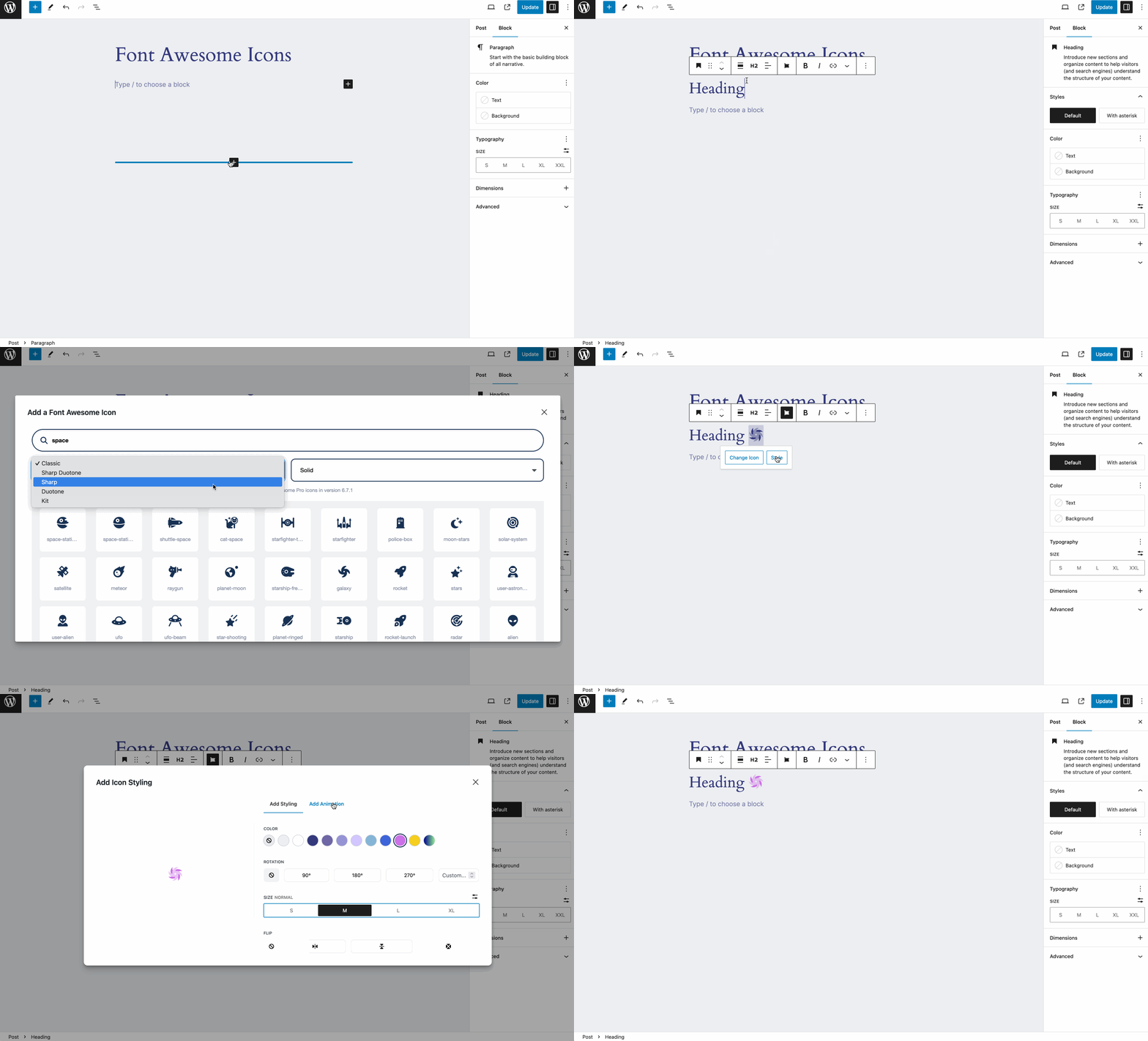
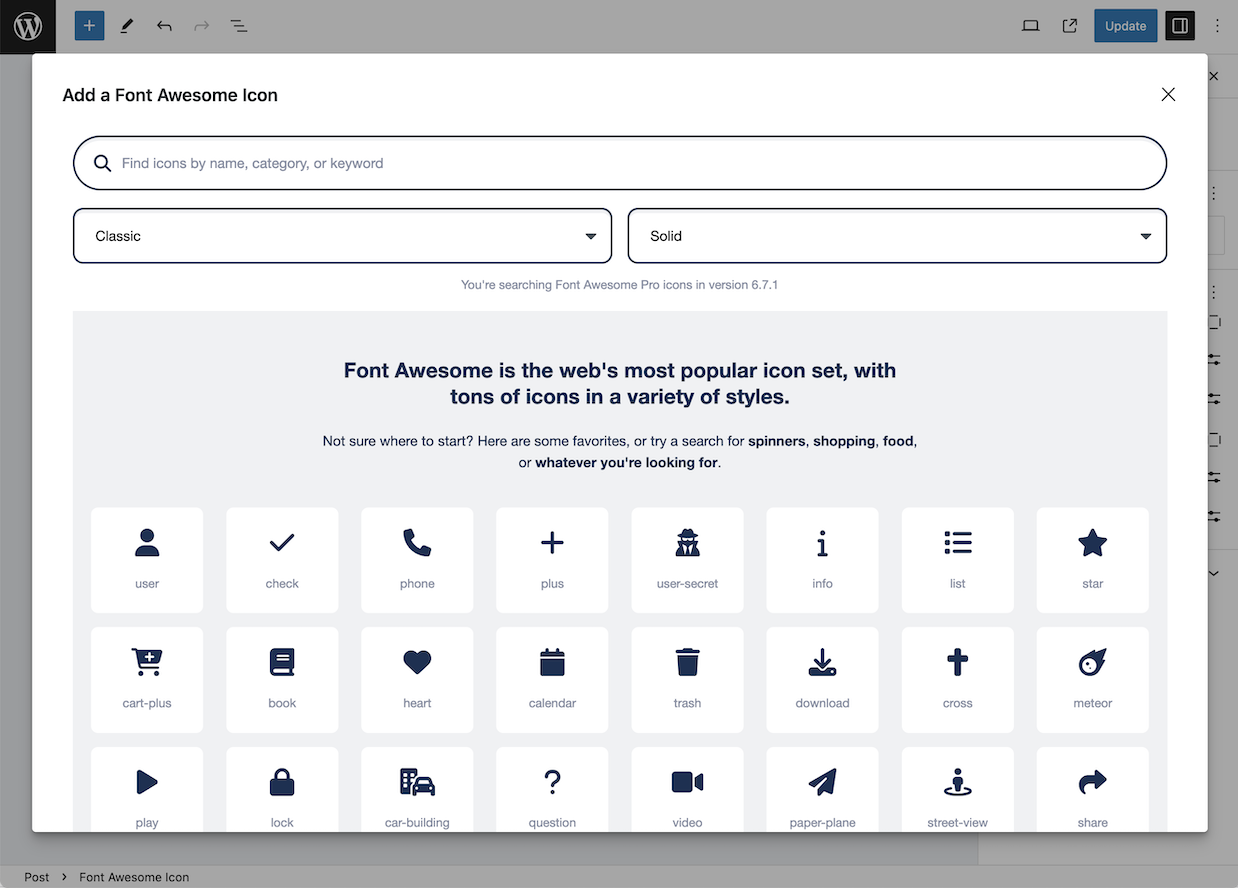
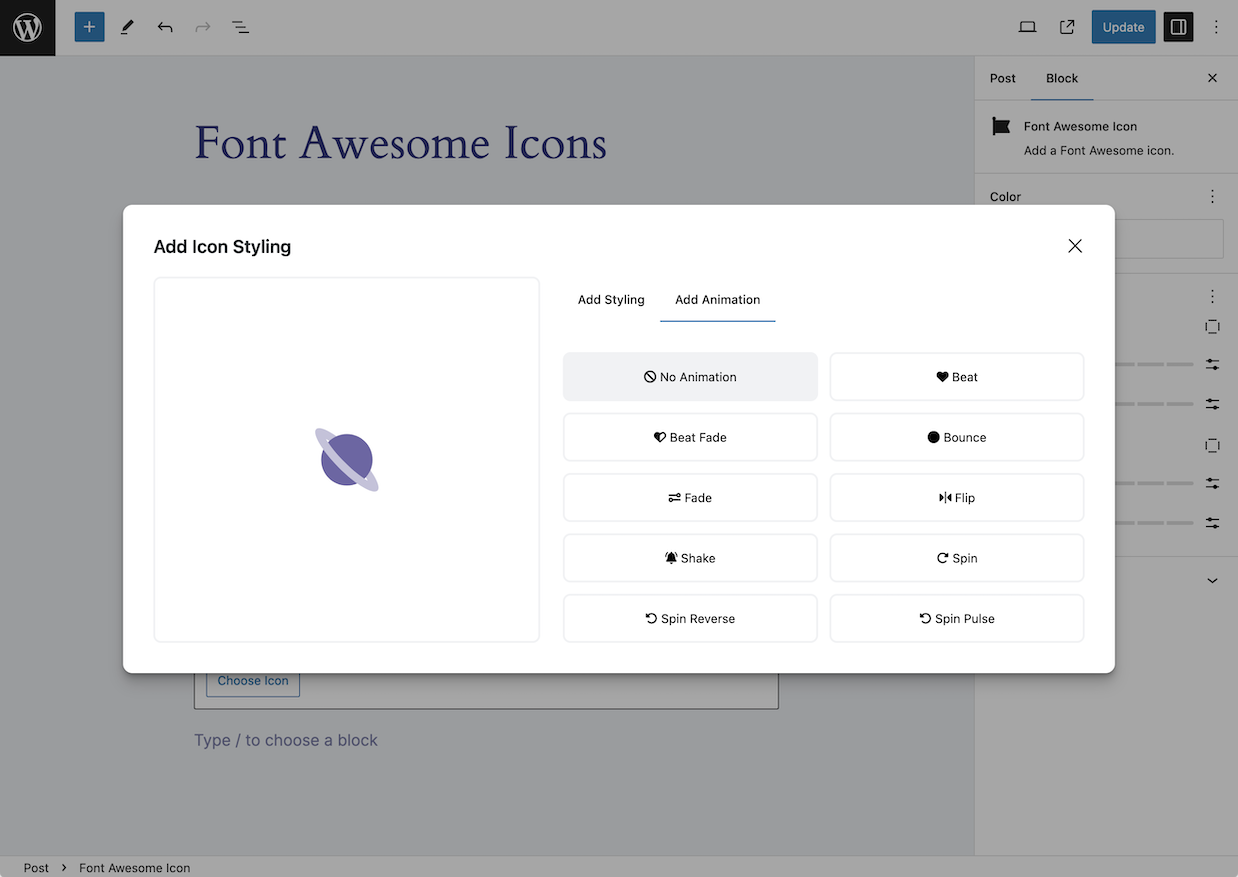
To add icons as blocks, select the „Font Awesome Icon“ block, and then click the „Choose Icon button“ to open the Icon Chooser.
To add icons inline, select the Font Awesome option in the format toolbar to open the Icon Chooser. (Note: Inline icons require at least WP 6.3.)
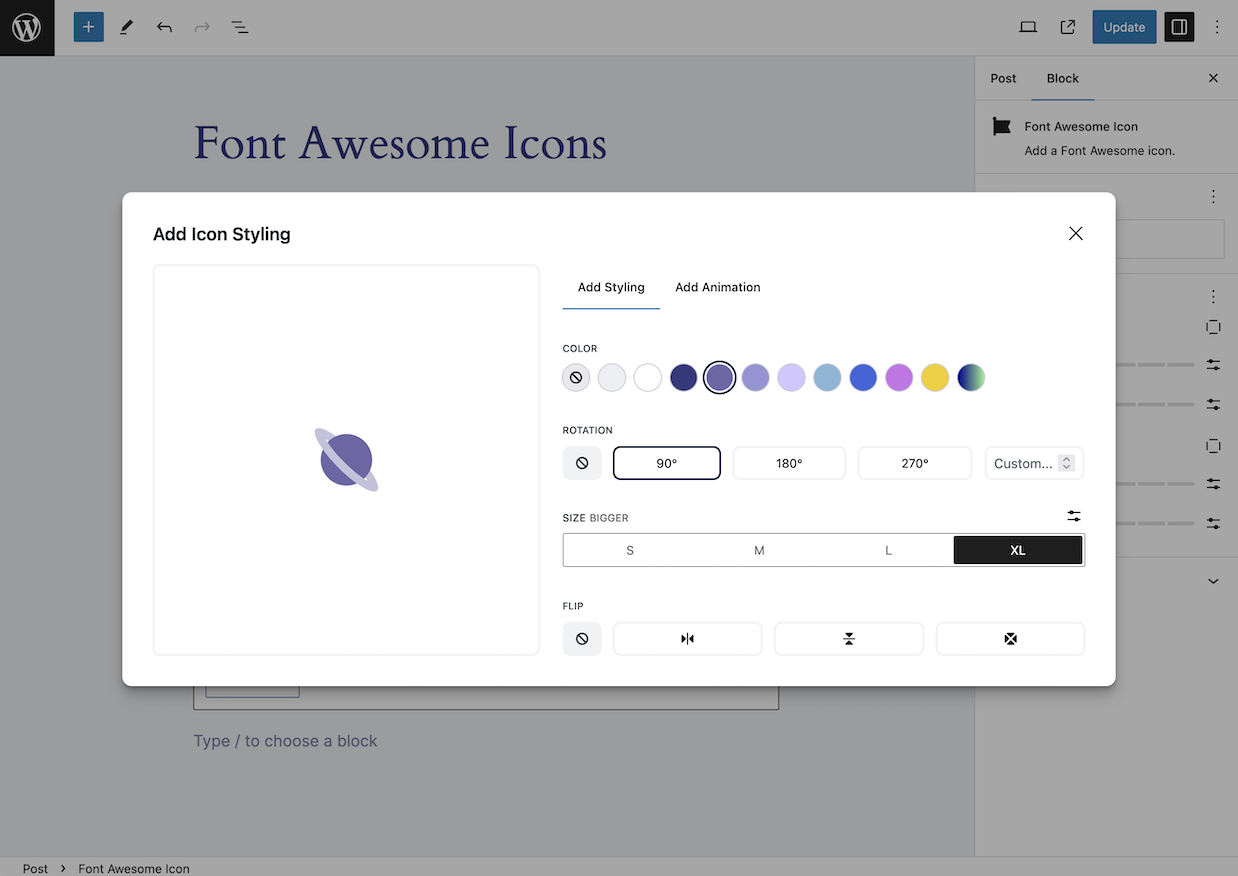
Once you open the Icon Chooser, add icons by:
Note: If you want to search and add Pro icons in the Icon Chooser, make sure you set your plugin to use a Pro Kit.
Add Icons in The Classic Editor
If you need to add icons in the classic editor, you can use the icon names in shortcodes or HTML. Add an icon using shortcodes to any text area – just add the name of the icon and a style prefix, where the prefix is the style of icon you want to use. Note that you don’t need to include the fa- part of the icon name. And if you don’t include any style prefix, the icon will default to the Classic Solid style.
Der Shortcode für ein Icon sieht so aus:
[icon name="stroopwafel"]

[icon name="stroopwafel" prefix="fa-sharp fa-light"]
You can also use basic HTML with standard Font Awesome syntax, like this:
<i class="fa-solid fa-stroopwafel"></i>
Using Pro Icons and Features
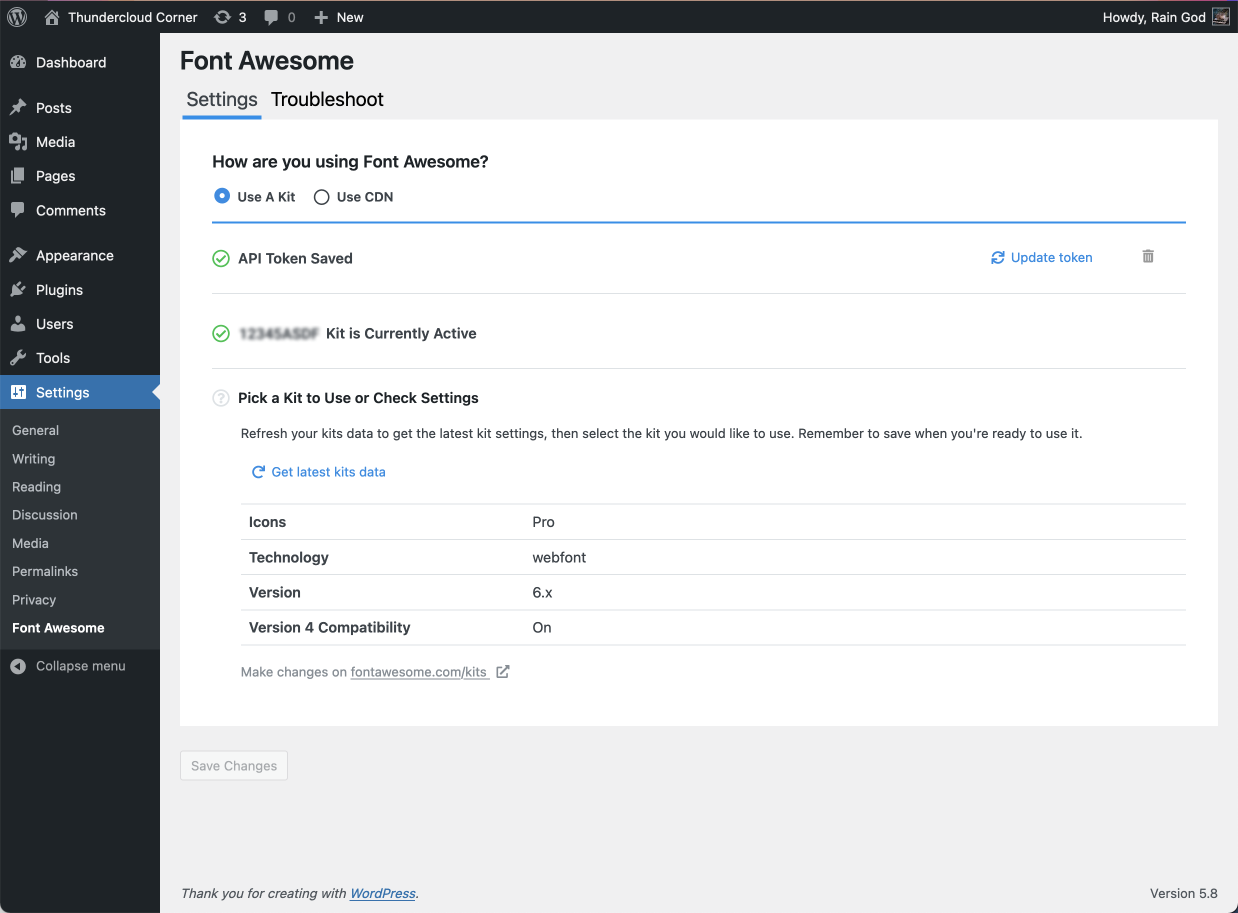
To use a Kit to power your icons, create a Kit on FontAwesome.com and select „Pro icons“ in the Kit Settings tab. Then grab your API Token from your Font Awesome Account page and add it to your WordPress plugin settings.
To use the CDN to power your icons, know that you will only be able to use icons from Version 5. To enable Pro icons, add your site’s domain to the list allowed domains on your Font Awesome CDN Settings page and then use shortcodes or HTML to add the icons into your content.
Troubleshooting with the Plugin
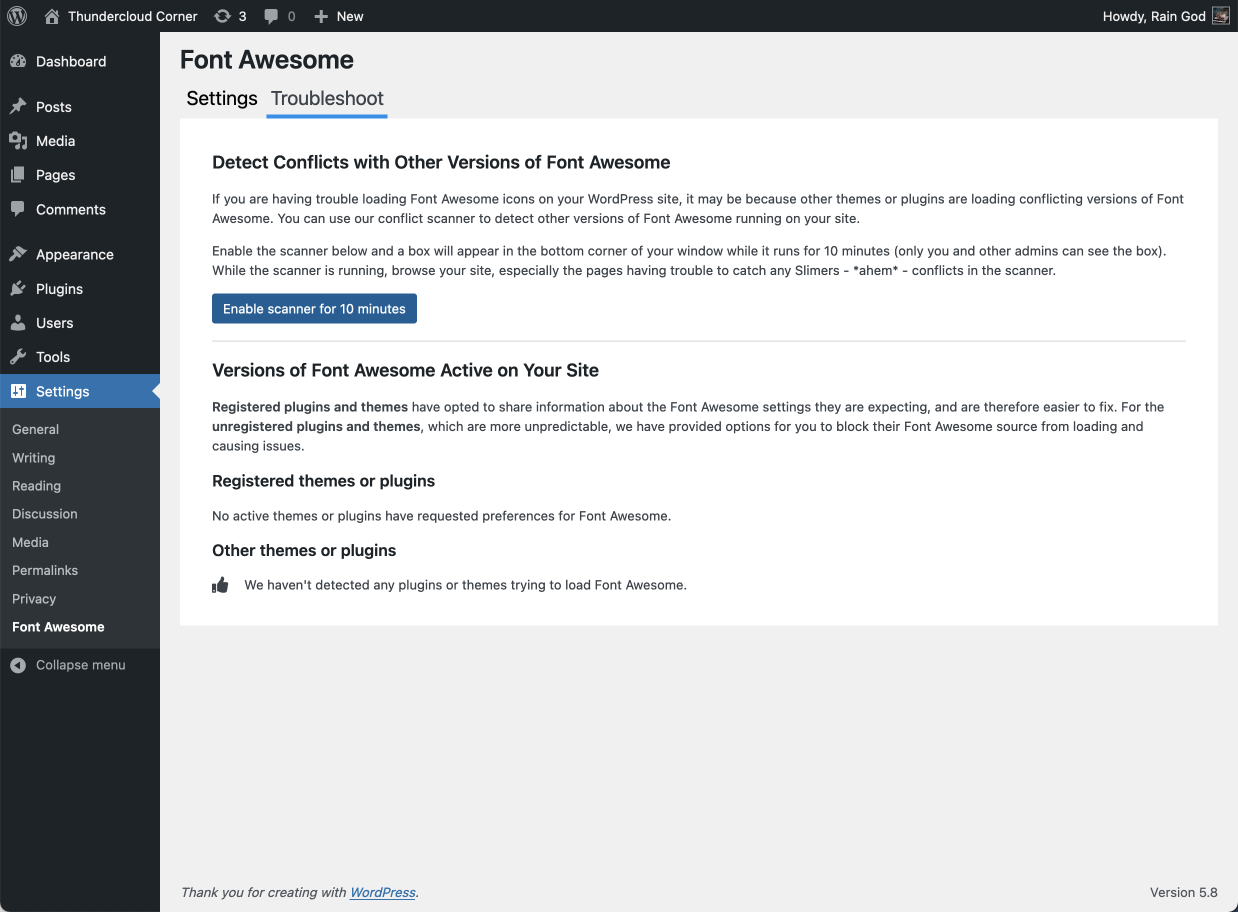
Font Awesome icons are popular, so lots of themes and plugins also load Font Awesome, and sometimes their version can conflict with yours. So we created a way to help you find and prevent those conflicting versions from affecting your icons: The Conflict Detection Scanner.
If the plugin seems to be set up correctly and your icons still aren’t loading and you’re not sure why, head over to the Troubleshoot tab, which has two parts:
Get more information about using the scanner for troubleshooting on the Font Awesome WordPress docs.
The plugin is set to serve Font Awesome Free icons as a Web Font via the Font Awesome CDN by default. You can change the CDN settings right in the plugin. If you want just the basic Free icons, you probably don’t need to make any changes to the default configuration.
You can get more information about all the available settings and troubleshooting on the Font Awesome WordPress docs.
Die README-Datei auf GitHub enthält Details für Website-Besitzer und Entwickler.
You can get more information about all the available settings and troubleshooting on the Font Awesome WordPress docs.
Außerdem gibt es eine API-Dokumentation für Entwickler.
Beschreibung veröffentlicht von fontawesome auf WordPress.org, lizenziert unter GPLv2 or later.
Screenshots
Screenshots veröffentlicht von fontawesome auf WordPress.org, lizenziert unter GPLv2 or later.
Historie nach Version
Versionsdetails anzeigen (1 Version)
Historie nach Version
Versionsdetails anzeigen (1 Version)
Wie sich das Plugin von Version zu Version entwickelt.
| Version | Homepage | Admin | Letzter Scan |
|---|---|---|---|
| v5.2.1 | 1 Scan | — | vor 2 Monaten |
Scan-Verlauf
Einzelnes Scan-Protokoll anzeigen (1 Scans)
Scan-Verlauf
Einzelnes Scan-Protokoll anzeigen (1 Scans)
| Datum | Version | Kontext | Score | Bewertung | Zeit | Speicher |
|---|---|---|---|---|---|---|
| vor 2 Monaten | v5.2.1 | Homepage | 98/100 | A | 0 ms | 0.0 MB |